If you want a customer's account number or ID to appear on printed invoices in QuickBooks Online, the key is the Account Number field. When this field is filled in, QuickBooks automatically includes it on invoices and statements.
Here's how to set it up — both manually and automatically.
Why print customer IDs on invoices?
Putting a customer ID on invoices helps in several ways:
- Faster payments — customers can reference their account number when paying, making it easier to match payments to accounts
- Easier support — when a customer calls with a question about their invoice, they can give you their account number instead of spelling their name
- Better record-keeping — account numbers create a clean link between your invoices and your internal systems
- Professional appearance — numbered accounts look more organized and established
The manual way
Step 1: Edit the customer
Go to Customer Hub > Customers, open the customer's profile, and click Edit.
Step 2: Add an account number
Scroll to the "Other" section and enter a number in the Account no. field. Click Save.
Step 3: Create an invoice
When you create an invoice for that customer, QuickBooks will automatically include the account number on the printed/PDF version of the invoice.
QuickBooks won't print a blank field. If you haven't assigned an account number to a customer, nothing will appear on their invoices. You need to fill in the Account Number field for every customer you want numbered invoices for.
The automatic way
If you have dozens or hundreds of customers, assigning account numbers one by one isn't practical. CustomerID for QuickBooks automates the entire process.
Here's what happens when you install it:
- CustomerID writes a unique number to every customer's Account Number field
- From that point on, every invoice you create automatically includes the customer's ID
- New customers get an account number assigned automatically — so their invoices are numbered from day one
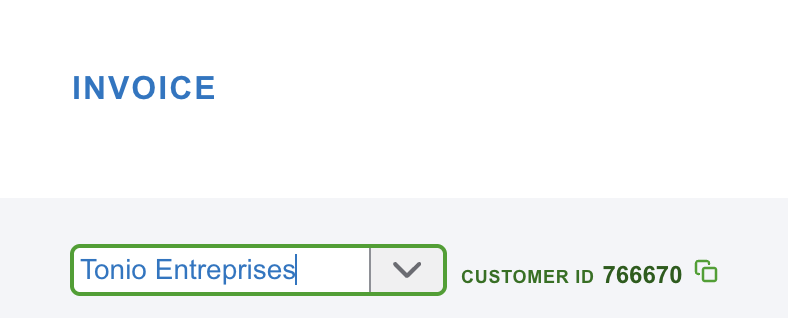
The ID also appears as a visible badge on the invoice page inside QuickBooks, so you can see it while creating the invoice — not just on the printed version.
What number gets printed?
Whatever is in the customer's Account Number field. With CustomerID, you have two options:
- QB internal IDs (1, 2, 42, etc.) — matches what the QuickBooks API uses
- Custom numbers starting from any value you choose (e.g., 1001, 5000)
Both options write to the same Account Number field, so both print on invoices.
Does it work on statements too?
Yes. QuickBooks includes the Account Number on customer statements just like it does on invoices. If the field is populated, the number appears.
Customer IDs on every invoice, automatically.
CustomerID fills in the Account Number field for your entire customer list. IDs print on invoices and statements from day one. $5/month.
Get StartedSummary
To print a customer ID on QuickBooks invoices, you need to populate the Account Number field on each customer record. You can do this manually (one customer at a time) or automatically using the CustomerID Chrome extension, which assigns numbers to all customers in one sync and keeps new customers numbered going forward.