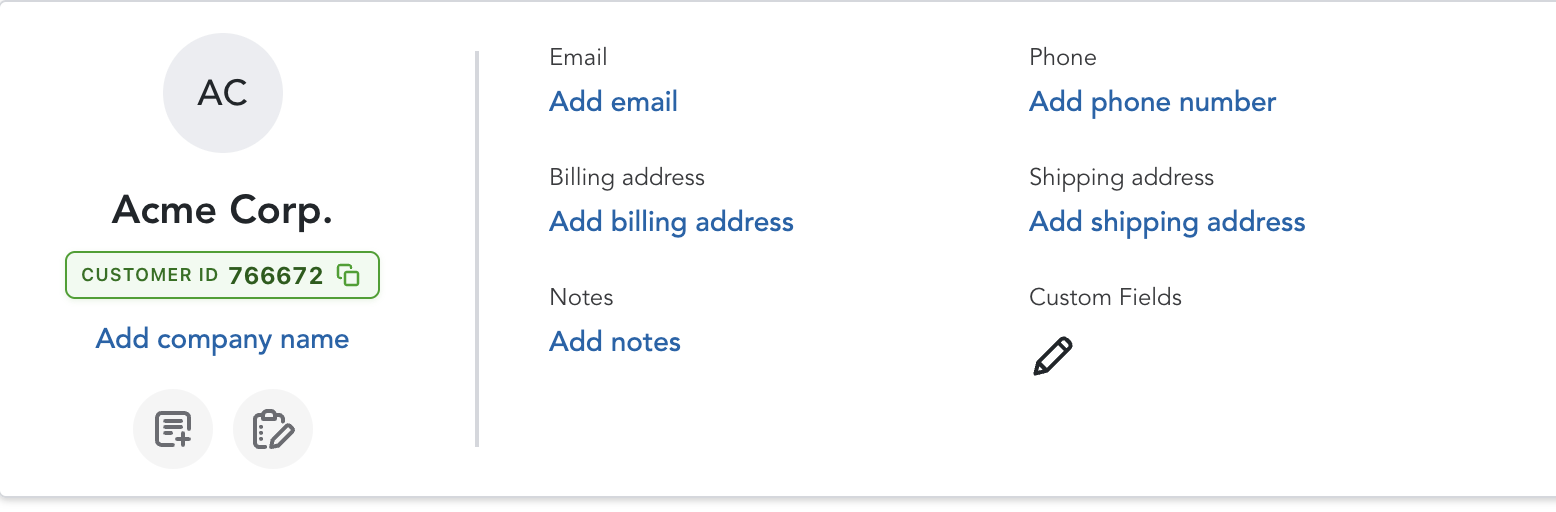
QuickBooks Online hides the internal IDs your team actually needs. CustomerID surfaces them as a real custom field — right inside QBO, no workarounds required.
Every customer in QuickBooks Online has an internal ID — but QBO buries it deep in the URL and never shows it on screen.
When you connect QB to other tools, they reference customers by ID — but your team has no easy way to look one up.
"Which customer is this?" — your team wastes time searching because customer names aren't always unique.
Reconciling data between QB and other systems requires IDs. Without them, you're guessing.
Without a visible customer ID, clients can't reference their account to pay invoices online — creating friction and delaying payments.
No complicated installs. No CSV exports. CustomerID for QuickBooks Online connects to your QBO account and does all the work.
Sign up, install the Chrome extension, and enter your license key. Takes about 60 seconds.
Click "Connect QuickBooks" in the extension. Authorize read + write access to your QB account.
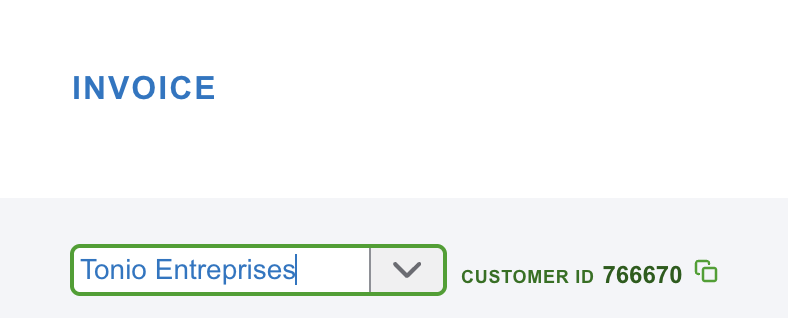
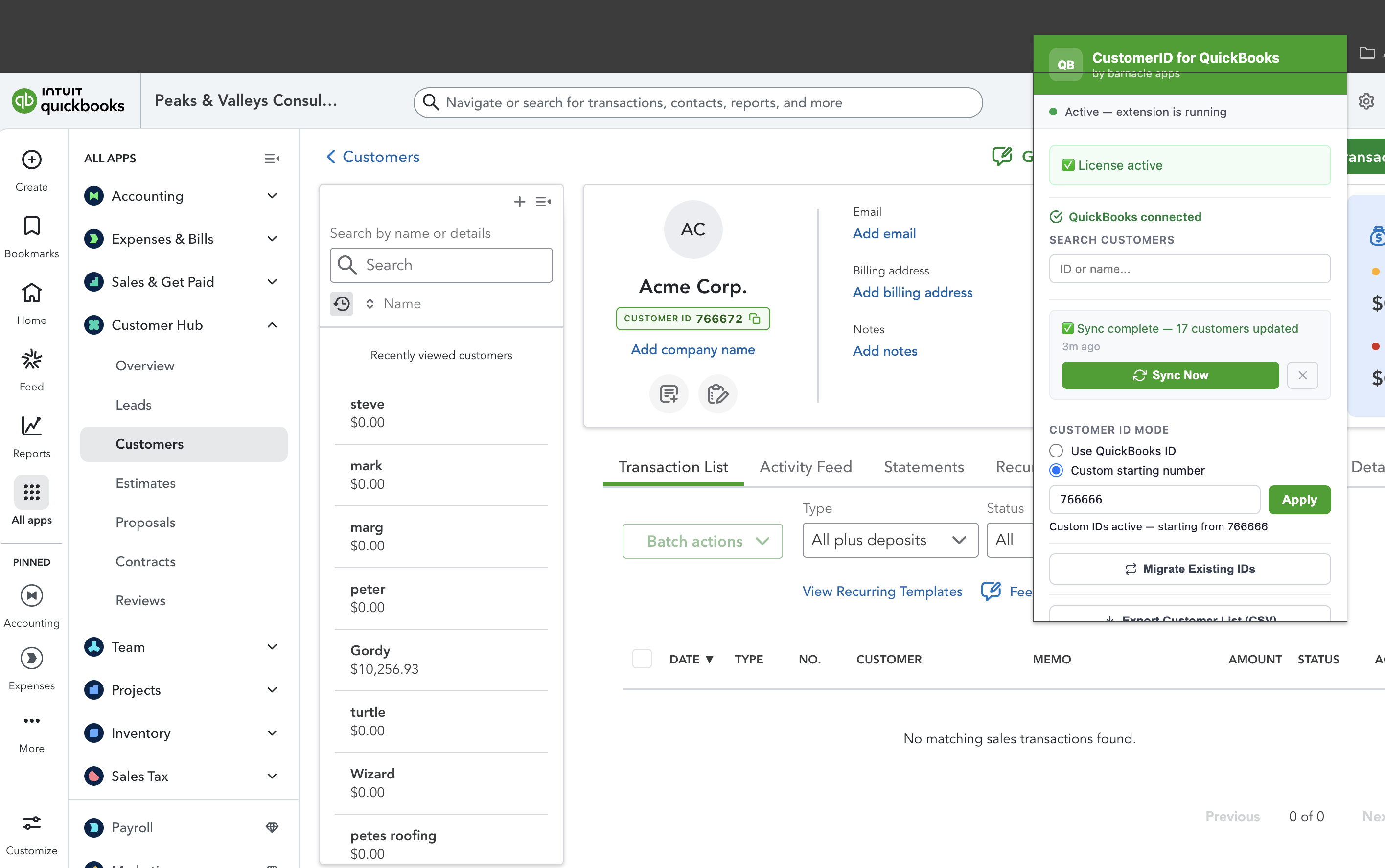
Your Customer ID badge appears instantly on every customer and invoice page. IDs sync to the Account Number field and print on invoices automatically.
If you've ever needed a customer's ID and couldn't find it — this is for you.
You use QuickBooks for invoicing and need customer IDs to match records with other tools, payment systems, or internal spreadsheets.
You manage multiple clients in QuickBooks and need a quick, reliable way to reference customers by ID across systems.
Your CRM, helpdesk, or billing system references QB customer IDs — but your team has no way to look them up without digging through URLs.
You want customer IDs printed on invoices so clients can reference their account number when paying or contacting support.
CustomerID isn't just a badge — it's a full ID management system built into QuickBooks.
A clean Customer ID badge appears on every customer and invoice page — no more digging through URLs or exports.
Customer IDs are written to QB's built-in Account Number field — so they print on invoices and statements, and carry over to new transactions automatically. No custom fields, no workarounds.
Every new customer you add to QuickBooks gets an ID assigned automatically. No manual work required after setup.
Start your IDs at any number you want — 1001, 5000, 10000. Keep your numbering consistent with your existing systems.
Been using your customer's display name to store a number like "1042 — Acme Corp"? CustomerID detects those patterns, moves the number to the Account Number field, and cleans up the display name — all in one click. New customers then continue from your highest existing number, or switch to QB's internal IDs. Your choice.
Manage multiple QB companies from one license key. Email keys directly to clients, track realm usage, and add more packs as you grow.
Find any customer instantly by name or Customer ID — right from the extension. No need to dig through QB's customer list or remember exact spellings.
Export your full customer list with Customer IDs in one click — straight from the extension. The exported IDs always match exactly what's shown on the badge, whether you're using custom numbers or QB IDs.
Solo or agency — everything included. Cancel anytime.
Everything you need to know before getting started.
Create your account and you'll be up and running in minutes.
$5/month — enter your details to get started.
Secure payment via Stripe. Cancel anytime.
Redirecting you to payment...