Every customer in QuickBooks Online has an internal ID — a unique number that identifies them in the system. But QuickBooks never actually shows it to you.
If you've ever needed a customer's ID for an API integration, a support ticket, or to match records between systems, you know the frustration. There's no "Customer ID" column, no field on the customer page, and no way to search by ID.
Here are three ways to find it.
Method 1: Look at the URL
The quickest manual way to find a customer's ID is to open their profile in QuickBooks Online and look at the browser's address bar.
When you navigate to a customer's page, the URL looks something like this:
https://qbo.intuit.com/app/customerdetail?nameId=42
The number after nameId= is the customer's internal ID. In this case, it's 42.
The problem with this method
- You have to navigate to each customer's page individually
- The ID isn't visible anywhere on screen — only in the URL
- You can't search by ID
- You can't easily share an ID with a teammate or client
- It's impossible to get a list of all customer IDs this way
Method 2: Use the QuickBooks API
If you're technical, you can query the QuickBooks API to get customer IDs programmatically. The Customer endpoint returns a list of customers with their Id field.
But this requires setting up OAuth 2.0 authentication, registering a developer app with Intuit, and writing code. Not practical if you just need to look up a customer ID quickly.
Method 3: Use a Chrome extension (recommended)
The simplest option is to install a Chrome extension that surfaces customer IDs directly inside QuickBooks Online.
CustomerID for QuickBooks adds a visible ID badge to every customer page and invoice. The ID appears right below the customer's name — no URL hunting required.
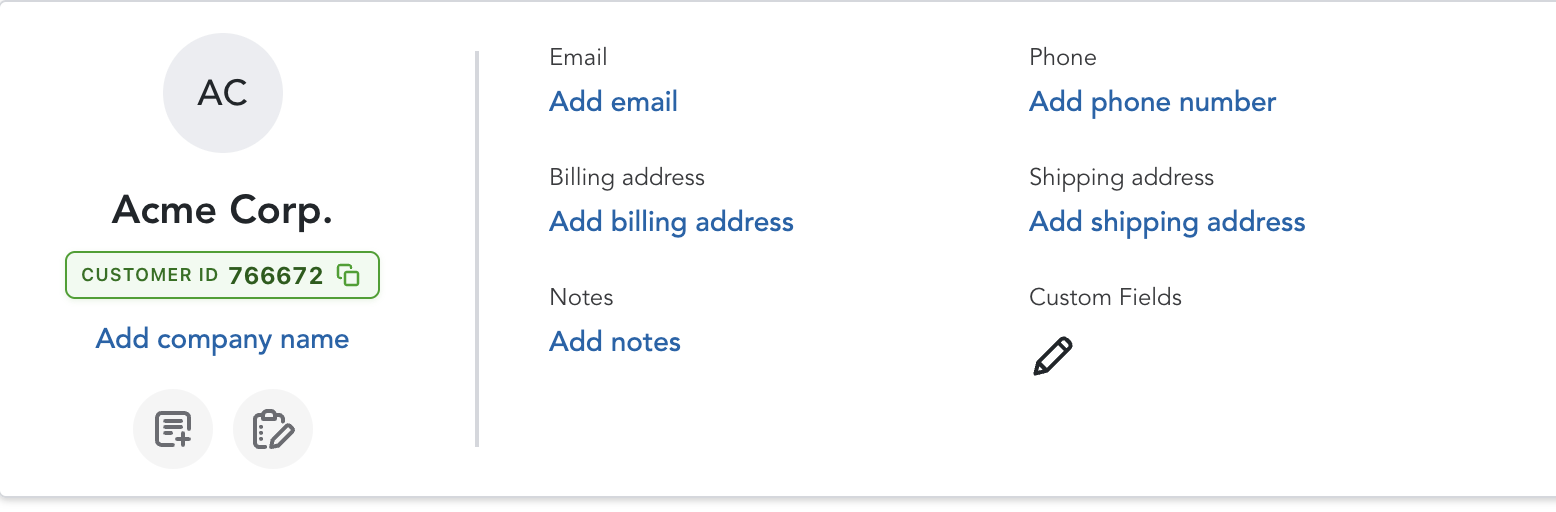
Here's what it does:
- Visible ID badge on every customer page and invoice
- Syncs to the Account Number field so the ID prints on invoices and statements
- Auto-assigns IDs to new customers as they're created
- Instant search — find any customer by ID or name from the extension popup
- CSV export — download your full customer list with IDs in one click
- Custom numbering — start IDs at any number you choose
You could — but you'd have to open each customer, edit their profile, and type in a number one at a time. CustomerID does this automatically for every customer in your account, including new ones. It also lets you search by ID and export your full list.
Which customer ID should you use?
CustomerID gives you two options:
- QuickBooks internal IDs — the same IDs that QB uses internally (1, 2, 3, etc.). Best if you need IDs that match what APIs and integrations use.
- Custom starting numbers — start from any number you choose (e.g., 1001, 5000, 10000). Best if you have an existing numbering system or want IDs that look more professional on invoices.
You can switch between modes anytime from the extension popup.
What about customers you've already numbered manually?
If you've been putting numbers in customer display names (like "1042 — Acme Corp"), CustomerID has a migration tool that detects those patterns, moves the number to the Account Number field, and cleans up the display name — all in one click.
Stop hunting through URLs.
CustomerID makes your QuickBooks customer IDs always visible — on every page, every invoice. $5/month, cancel anytime.
Get StartedSummary
QuickBooks Online hides customer IDs by default. You can find them in the URL, through the API, or by using the CustomerID Chrome extension. If you need IDs regularly — for integrations, support, invoicing, or reporting — the extension is the fastest way to make them permanently visible.